Autodesk Revit
Use the VIKTOR Revit worker to run Python scripts on a Windows machine with Revit installed. You can read and change the model that is open in Revit, or start a new Revit session for a batch job.
For your first software integration, start with one of the intermediate tutorials.
System requirements
- A Windows machine with Revit installed. Use Revit 2024 or newer for these examples.
- Python for the VIKTOR worker. The worker scripts below use only the Python standard library.
- pyRevit. The Agent Runtime requires version 7.0 or newer.
The worker Python environment is separate from the pyRevit engine that runs the scripts inside Revit.
Two ways to run Revit from VIKTOR
The worker calls pyRevit to execute your Revit API code:
- Open model: the Agent Runtime uses the model that is currently open in Revit. Use
queryto read data,modifyto write values back, anddry_runto preview changes and roll them back. Each approved run is one undo entry in Revit. - Batch scripts:
pyrevit runstarts a new Revit session for a model file. Use this approach for batch jobs and file exports, such as the PDF example below.
The Agent Runtime was introduced in pyRevit 7.0 and is marked as experimental in the pyRevit documentation. Test your scripts locally before deploying them.
Download and install pyRevit
Download the pyRevit installer. Pick
pyRevit_<version>_signed.exe (installs for the current user) or pyRevit_<version>_admin_signed.exe (installs
for all users). Follow the installer steps, then check the installation in a new terminal:
pyrevit --version
pyrevit attached
Check that pyRevit is attached to the Revit version you will use. If pyrevit is not found, add the folder that
contains pyrevit.exe to your Windows PATH. If pyrevit agent only prints the general help text, check that
the command uses pyRevit 7.0 or newer.
Set up the pyRevit Agent Runtime
Complete this section for the Open model: read and write example. Batch scripts do not need the Agent Runtime.
The Agent Runtime is off by default. To enable it:
- Start Revit and open a model.
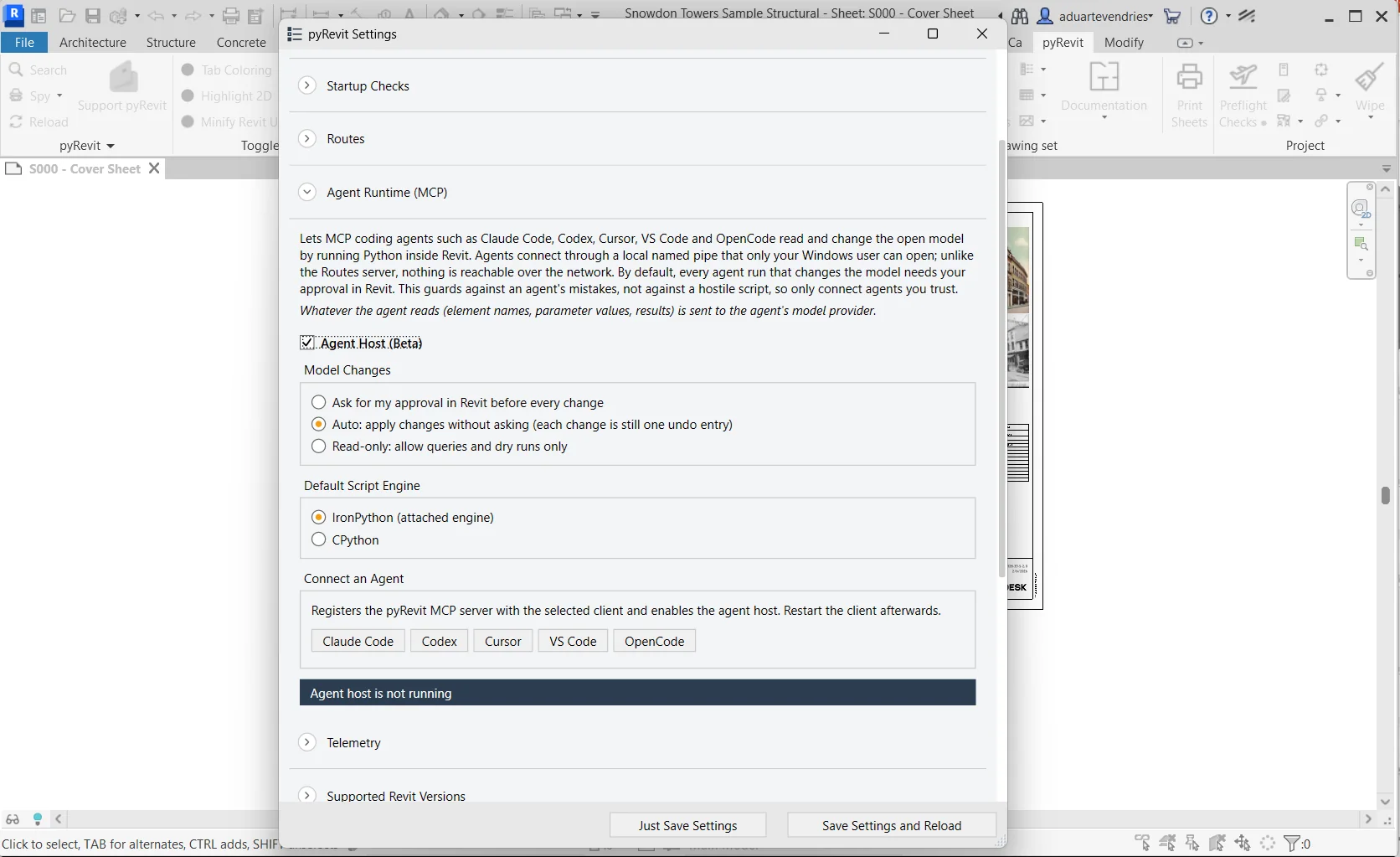
- Go to pyRevit → Settings and expand Agent Runtime (MCP).
- Tick Agent Host (Beta). This starts the in-Revit host that the
pyrevit agentcommand connects to. - Choose how Model Changes are handled:
- Ask for my approval in Revit before every change (default): every
modifyrun shows a Keep/Discard prompt in Revit, with the changed elements selected. Recommended while developing. - Auto: changes are applied without a prompt. Each run is still a single undo entry named
Agent: <title>. - Read-only: only
queryanddry_runruns are allowed.
- Ask for my approval in Revit before every change (default): every
- Keep IronPython as the Default Script Engine, unless your Revit scripts need CPython packages such as
numpy. - Click Save Settings and Reload.
The Connect an Agent buttons register pyRevit with AI coding tools. You do not need to use these buttons or enable the Routes server for this VIKTOR integration.
Check that the open Revit session is listening:
pyrevit agent status
- The
pyrevit agentcommand talks to Revit over a local named pipe that only the same Windows user can open. Run the VIKTOR worker as the same user that runs Revit, e.g. a personal worker in VIKTOR Desktop. - Revit must be running with a model open.
modifyruns are refused when no document is active. - With the Ask policy, a
modifyrun waits until the user answers the prompt in Revit. Set the timeouts in the worker script andanalysis.execute()long enough for the user to respond. - The
querymode rejects and rolls back model changes, but the script itself has full access to the worker machine. pyRevit also stores the script and result of each run as plain text under%APPDATA%\pyRevit\agentfor 14 days.
Additional information
Set up the work environment
Step 1: Add integration to app config
To make the worker integration available through the interface, add the following to your viktor.config.toml:
worker_integrations = [
    "revit",
]
Instructions on how to install the worker:
Install the worker
Follow these steps to install the worker:
- Personal worker
- Organization worker
A personal worker connects the software that is installed on your own machine, for your own use. Personal workers are installed and managed with VIKTOR Desktop:
-
Download and install VIKTOR Desktop and log in with your VIKTOR account, if you haven't done so already
-
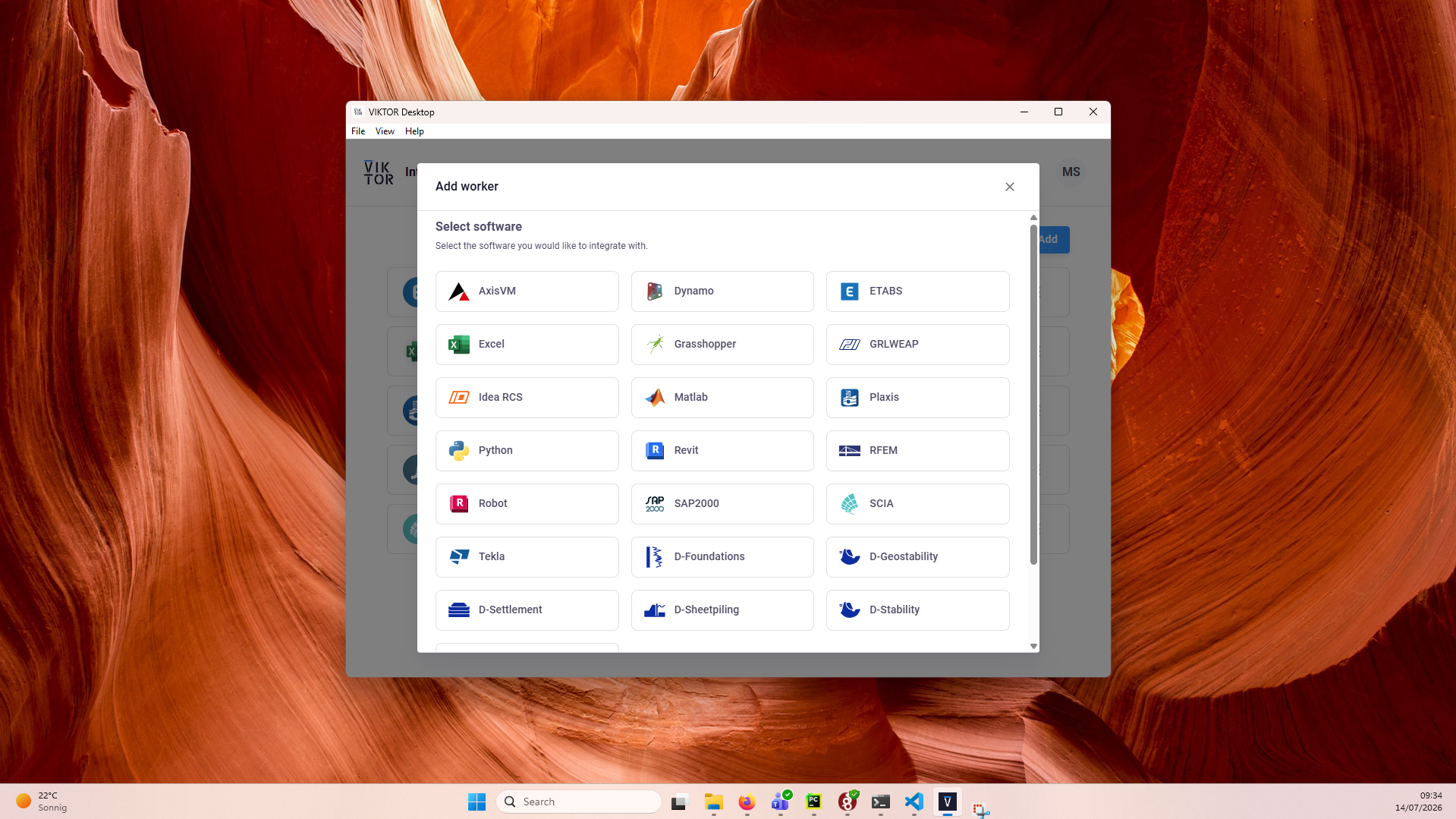
In VIKTOR Desktop, click "Add" and select Revit
-
Select the Python environment of your choice by setting the path to its
python.exeas the executable path. This can be your system Python, or the python.exe in a dedicated virtual environmenttipYour default Python environment can usually be found in
C:\Users\Username\AppData\Local\Programs\Python\Python31X\python.exeIf you cannot find it, try running the following command in your terminal
where python -
Start the worker. You can view its logs inside VIKTOR Desktop, and the editor shows when your worker is online
Personal workers that were installed with the previous per-worker installer keep running, but new personal workers can only be added through VIKTOR Desktop: the per-worker installer download and connection-key flow are no longer available for personal use.
An organization worker connects software that runs on a machine managed by your organization, such as a virtual or remote machine, and is shared by the users of the app instance(s) you select.
You need to be an environment administrator in order to install an organization worker.
-
Navigate to the "Integrations" tab in the Administrator panel
-
Click "Add integration"
-
Follow the steps provided in the modal

3.1. Select Revit
3.2. Select the app instance(s) the integration should be available to
3.3. Download the worker .msi (Microsoft Installer) and run it on the machine of choice
3.4. Copy the generated connection key and paste it when the installer asks for it. In the browser, you can now click Finish and continue in the installer.
Connection KeyThe generated connection key should be copied immediately as VIKTOR will not preserve this data for security reasons.
-
In the installer wizard, select the Python executable of your choice, this can be your system Python, or the python.exe in a dedicated virtual environment
tipYour default Python environment can usually be found in
C:\Users\<Username>\AppData\Local\Programs\Python\Python31X\python.exe.If you cannot find it, try running
where pythonin your terminal. -
Make sure to launch the integration once the installation is finished. If you closed the integration, you can restart it through the desktop shortcut.
Step 2: Start a VIKTOR app
Create, install, and start an empty app. Follow the starter guide if you need help.
Step 3: Add the scripts to your VIKTOR app
The integration uses three types of file:
- a Revit script that contains the Revit API code and runs inside Revit,
- a worker script that calls the pyRevit CLI and collects the output,
- the VIKTOR app (
app.py), which sends both scripts to the worker withvkt.revit.RevitAnalysisand reads the result.
Select an approach below. The title of each code block shows the file to create.
- Open model: read and write
- Batch scripts
Read the open model
Read data from the model that is currently open in Revit. Query runs reject and roll back model changes.
Revit script. pyRevit provides doc, uidoc, DB (Autodesk.Revit.DB), UI, and inputs. Assign the data you
want to return to result; it is converted to JSON (an ElementId becomes an integer).
walls = DB.FilteredElementCollector(doc).OfClass(DB.Wall).WhereElementIsNotElementType()

rows = []
for wall in walls:
    level = doc.GetElement(wall.LevelId)
    length = wall.get_Parameter(DB.BuiltInParameter.CURVE_ELEM_LENGTH)
    rows.append({
        "id": wall.Id,
        "type": wall.Name,
        "level": level.Name if level else "",
        "length_m": DB.UnitUtils.ConvertFromInternalUnits(length.AsDouble(), DB.UnitTypeId.Meters) if length else 0.0,
    })

result = {"model": doc.Title, "walls": rows}
Worker script. Reads job.json, runs the Revit script with pyrevit agent run and saves the JSON response that
the CLI prints. The response contains status ("ok" on success), result, output (printed text) and error.
import json
import os
import shutil
import subprocess
from pathlib import Path

root = Path(__file__).resolve().parent
job = json.loads((root / "job.json").read_text(encoding="utf-8"))

mode = job.get("mode", "query")
if mode not in ("query", "dry_run", "modify"):
    raise ValueError("Invalid mode: " + mode)

pyrevit = shutil.which("pyrevit") or os.path.expandvars(r"%APPDATA%\pyRevit-Master\bin\pyrevit.exe")
command = [
    pyrevit, "agent", "run", str(root / "revit_task.py"),
    "--mode=" + mode,
    "--title=" + job.get("title", "VIKTOR"),
    "--inputs=" + json.dumps(job.get("inputs", {})),
    "--timeout=" + str(job.get("timeout", 240)),
]
if job.get("revit"):
    command.append("--revit=" + str(job["revit"]))  # Revit year, when several versions are running

process = subprocess.run(command, capture_output=True, text=True, timeout=job.get("timeout", 240) + 30)
try:
    response = json.loads(process.stdout[process.stdout.find("{"):])
except ValueError:
    response = {"status": "error", "error": (process.stderr or process.stdout).strip()}

(root / "output.json").write_text(json.dumps(response, indent=2), encoding="utf-8")
VIKTOR app.
import json
from io import BytesIO
from pathlib import Path

import viktor as vkt

SCRIPTS = Path(__file__).parent / "revit_scripts"


def run_agent(task_script, mode="query", inputs=None, title="VIKTOR", timeout=240):
    job = {"mode": mode, "title": title, "inputs": inputs or {}, "timeout": timeout}
    analysis = vkt.revit.RevitAnalysis(
        script=vkt.File.from_path(SCRIPTS / "run_agent.py"),
        files=[
            ("revit_task.py", vkt.File.from_path(SCRIPTS / task_script)),
            ("job.json", BytesIO(json.dumps(job).encode())),
        ],
        output_filenames=["output.json"],
    )
    analysis.execute(timeout=timeout + 60)
    response = json.loads(analysis.get_output_file("output.json").getvalue())
    if response.get("status") != "ok":
        error = response.get("error")
        message = error.get("message") if isinstance(error, dict) else error
        raise vkt.UserError(f"Revit run failed: {message}")
    return response


class Parametrization(vkt.Parametrization):
    intro = vkt.Text("Shows the walls of the model that is currently open in Revit.")


class Controller(vkt.Controller):
    parametrization = Parametrization

    @vkt.TableView("Walls in the open Revit model", duration_guess=10)
    def walls(self, params, **kwargs):
        result = run_agent("walls_by_level.py", mode="query")["result"]
        rows = [[w["id"], w["type"], w["level"], round(w["length_m"], 2)] for w in result["walls"]]
        return vkt.TableResult(rows, column_headers=["Id", "Type", "Level", "Length [m]"])
Write to the open model
Write values back to the model that is currently open in Revit. The worker script run_agent.py and the
run_agent() helper are the same as in the read example above.
Revit script. In modify mode the script opens its own transaction. Values from VIKTOR arrive in inputs.
level_name = inputs["level"]
comment = inputs["comment"]

walls = DB.FilteredElementCollector(doc).OfClass(DB.Wall).WhereElementIsNotElementType()

t = DB.Transaction(doc, "Set wall comments")
t.Start()
updated = []
for wall in walls:
    level = doc.GetElement(wall.LevelId)
    if level is None or level.Name != level_name:
        continue
    parameter = wall.get_Parameter(DB.BuiltInParameter.ALL_MODEL_INSTANCE_COMMENTS)
    if parameter and not parameter.IsReadOnly:
        parameter.Set(comment)
        updated.append(wall.Id)
t.Commit()

result = {"updated": len(updated), "ids": updated}
VIKTOR app. Keep the imports, SCRIPTS, and run_agent() helper from the read example above.
Replace Parametrization and Controller with the classes below. Use an ActionButton, so the model is only
changed when the user clicks the button. Select "Preview only" to use --mode=dry_run, which reports the changes
and rolls them back.
class Parametrization(vkt.Parametrization):
    intro = vkt.Text(
        "Writes a comment to all walls on a level of the model that is open in Revit. "
        "Depending on the pyRevit policy, you may need to approve the change in Revit."
    )
    level = vkt.TextField("Level name", default="Level 1")
    comment = vkt.TextField("Comment", default="Checked in VIKTOR")
    preview = vkt.BooleanField("Preview only (dry run)", default=True)
    apply = vkt.ActionButton("Write to Revit", method="write_comments", longpoll=True)


class Controller(vkt.Controller):
    parametrization = Parametrization

    def write_comments(self, params, **kwargs):
        response = run_agent(
            "set_wall_comments.py",
            mode="dry_run" if params.preview else "modify",
            inputs={"level": params.level, "comment": params.comment},
            title="VIKTOR wall comments",
            timeout=600,  # leave time to approve the change in Revit
        )
        vkt.UserMessage.info(
            f"Walls processed: {response['result']['updated']} (decision: {response.get('decision')})"
        )
Run a script in a new Revit session, typically on a closed model file. pyrevit run starts Revit, runs the
script and closes Revit again; it does not use the session a user has open. This approach does not need the Agent
Runtime. The model path must point to a file on the worker machine that the worker user can access. Keep that
model closed in other Revit sessions.
Revit script. The model paths passed on the command line are available in __models__, and __revit__ is the
Revit UIApplication. The script opens the document itself and writes its output next to the script.
import os
from Autodesk.Revit import DB
from System.Collections.Generic import List

output_dir = os.path.dirname(__file__)
doc = __revit__.Application.OpenDocumentFile(__models__[0])
try:
    sheets = DB.FilteredElementCollector(doc).OfClass(DB.ViewSheet).ToElementIds()
    options = DB.PDFExportOptions()
    options.FileName = "output"
    options.Combine = True
    doc.Export(output_dir, List[DB.ElementId](sheets), options)
finally:
    doc.Close(False)
Worker script. Runs the Revit script with pyrevit run on the model file. --purge removes the temporary
run environment afterwards.
import json
import os
import shutil
import subprocess
from pathlib import Path

root = Path(__file__).resolve().parent
job = json.loads((root / "job.json").read_text(encoding="utf-8"))

pyrevit = shutil.which("pyrevit") or os.path.expandvars(r"%APPDATA%\pyRevit-Master\bin\pyrevit.exe")
subprocess.run(
    [pyrevit, "run", str(root / "revit_task.py"), job["model_path"], "--revit=" + str(job["revit"]), "--purge"],
    check=True,
    timeout=600,
)
VIKTOR app.
import json
from io import BytesIO
from pathlib import Path

import viktor as vkt

SCRIPTS = Path(__file__).parent / "revit_scripts"


class Parametrization(vkt.Parametrization):
    model_path = vkt.TextField("Model path on the worker", default=r"C:\Models\project.rvt")
    revit = vkt.IntegerField("Revit version", default=2026)
    download = vkt.DownloadButton("Export sheets to PDF", method="export_pdf", longpoll=True)


class Controller(vkt.Controller):
    parametrization = Parametrization

    def export_pdf(self, params, **kwargs):
        job = {"model_path": params.model_path, "revit": params.revit}
        analysis = vkt.revit.RevitAnalysis(
            script=vkt.File.from_path(SCRIPTS / "run_pyrevit.py"),
            files=[
                ("revit_task.py", vkt.File.from_path(SCRIPTS / "export_pdf.py")),
                ("job.json", BytesIO(json.dumps(job).encode())),
            ],
            output_filenames=["output.pdf"],
        )
        analysis.execute(timeout=900)
        return vkt.DownloadResult(analysis.get_output_file("output.pdf"), "sheets.pdf")
Test the scripts locally
Test your scripts on your computer before you set up a worker on another machine. Run a Revit script from a Windows Command Prompt with the same command the worker uses:
pyrevit agent run revit_scripts\walls_by_level.py --mode=query
pyrevit agent run revit_scripts\set_wall_comments.py --mode=dry_run --inputs="{\"level\": \"Level 1\", \"comment\": \"Test\"}"
pyrevit agent runs
pyrevit agent runs lists the recent runs, and pyrevit agent show <run_id> prints the script, request and
response of a run.
The Revit API documentation uses C#, but the API names are the same in pyRevit. Refer to the
Revit API documentation for classes and methods. Revit stores lengths in feet;
convert them with DB.UnitUtils, as shown in the query example.
Example app
Try the pyRevit integration app. It reads element
counts and applies colours by category to a view in the open Revit model. Its docs/images folder also shows how
to configure pyRevit and the Revit worker in VIKTOR Desktop.
Testing
RevitAnalysis.execute needs to be mocked within
the context of (automated) testing.
The viktor.testing module provides the mock_RevitAnalysis
decorator to mock workers:
import unittest

import viktor as vkt

from viktor.testing import mock_RevitAnalysis

from app.my_entity_type.controller import MyEntityTypeController


class TestMyEntityTypeController(unittest.TestCase):
    @mock_RevitAnalysis(get_output_file={
        'result.xml': vkt.File.from_path('test_file.xml'),  # <name>: <File>
        'result.json': vkt.File.from_path('test_file.json'),
    })
    def test_analysis(self):
        MyEntityTypeController().analysis()
The decorator accepts these input values:
- A sequence: each method call returns the next item. A call after the last item raises an exception.
- A single object: each method call returns the same object.
None(default): each method call returns a defaultFileorBytesIOobject with empty content.