Install VIKTOR with Docker
The installation procedure to run VIKTOR using Docker is not recommended for first-time users.
By using Docker, running the code in development will more closely resemble production, so the chance of encountering differences between development and production is smaller. We recommend Docker only for experienced developers, as setting up Docker for Windows is not always convenient and, depending on your company size, may require a paid subscription.
Before you start
Sign in to your VIKTOR account. Your computer must meet the device requirements. If you use macOS or cannot install software on your computer, use GitHub Codespaces.
If you use WSL2, you need an Ubuntu shell before you start. If it is not available, complete the WSL2 setup first. When the pop-up opens the Install VIKTOR step, follow Using WSL2 below.
Installing VIKTOR
-
Click Settings in your user menu to open Personal settings.
-
Click Local development in the menu.
-
Click Start installation in the Install VIKTOR section.

-
Select Install on my computer in the pop-up.
-
Click Let's go!.
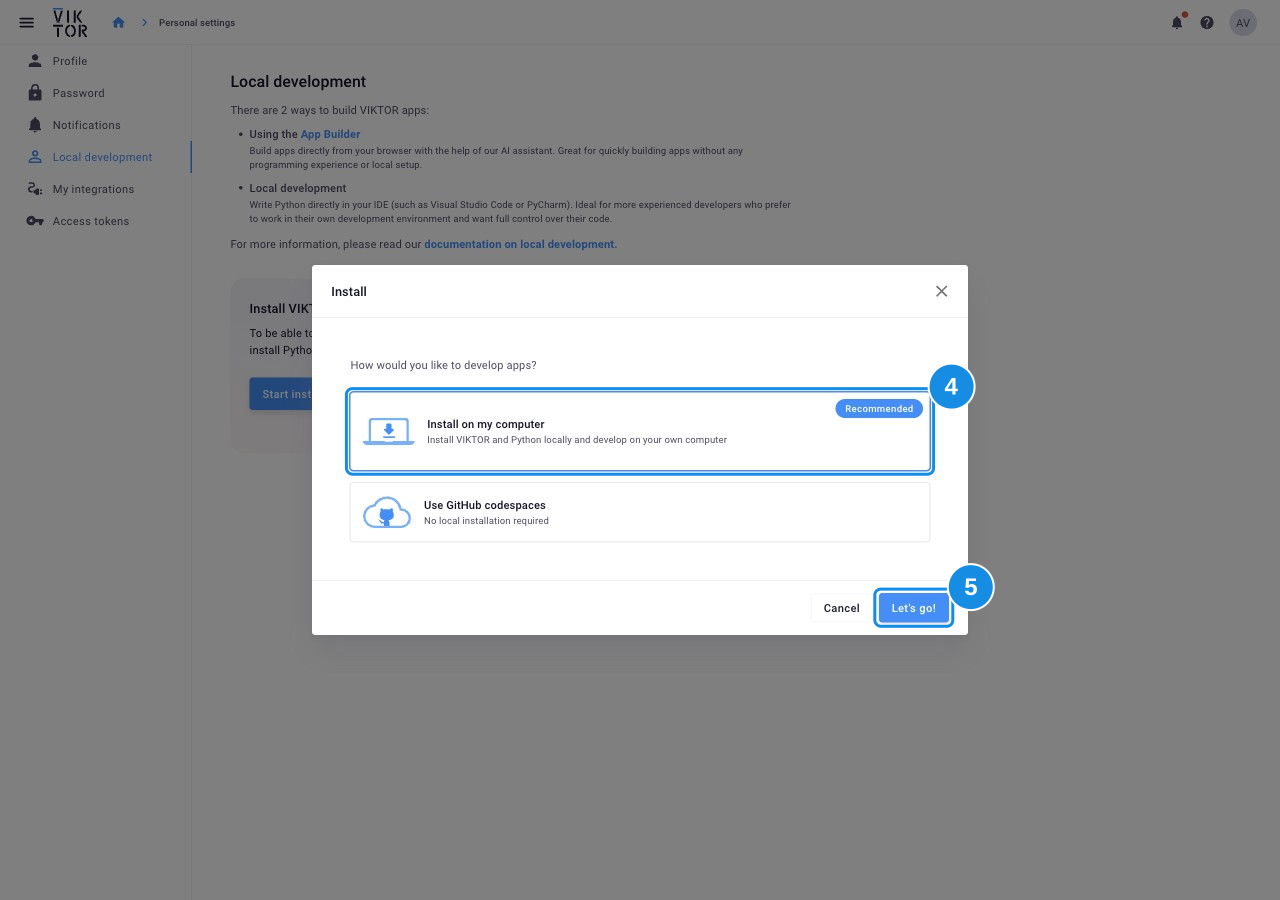
- For WSL2, continue with the instructions below. For Hyper-V or Linux, complete the installation steps in the pop-up.
Using WSL2
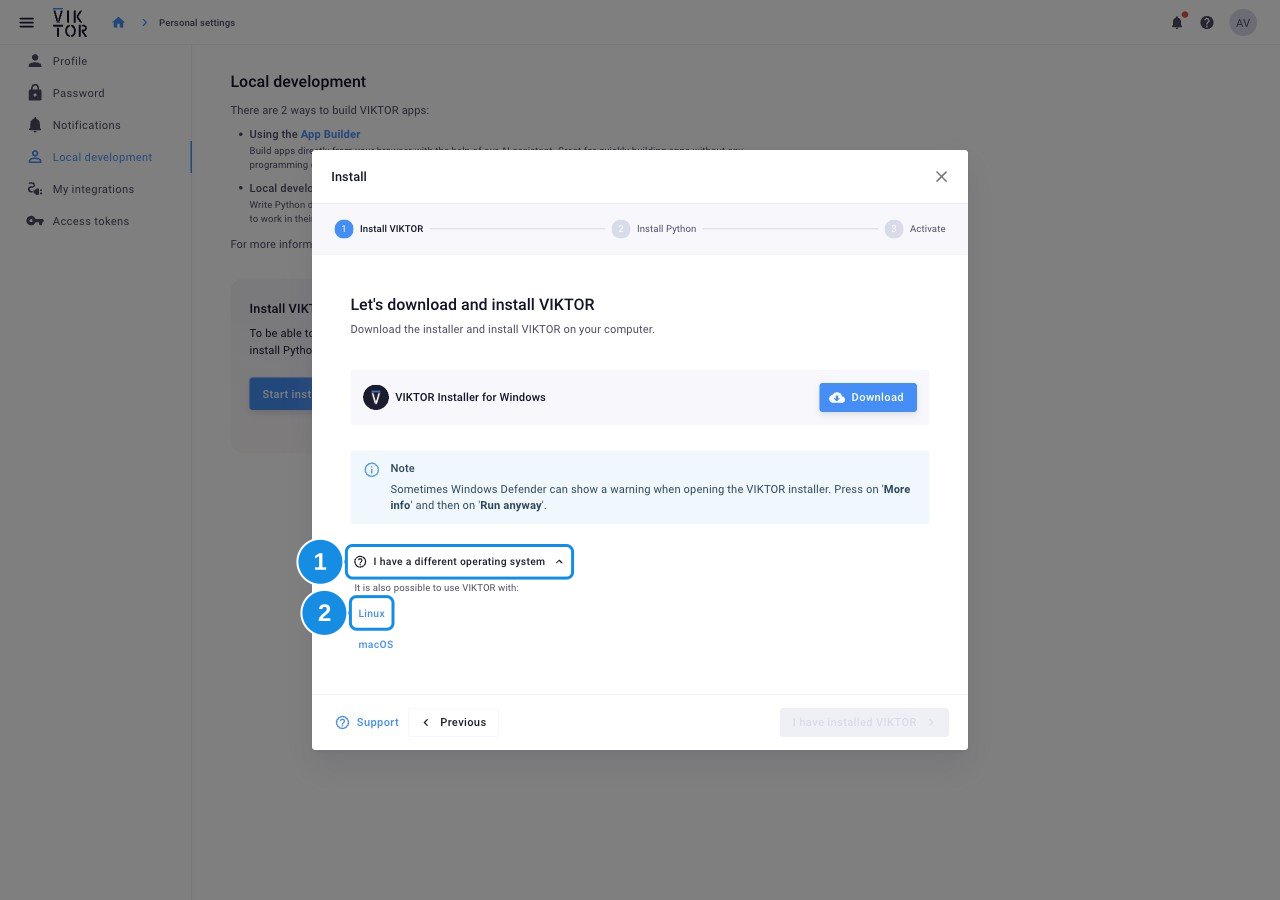
The pop-up detects your operating system from your browser. For WSL2, select Linux to install VIKTOR in Ubuntu.
-
Click I have a different operating system in the pop-up.
-
Select Linux.
-
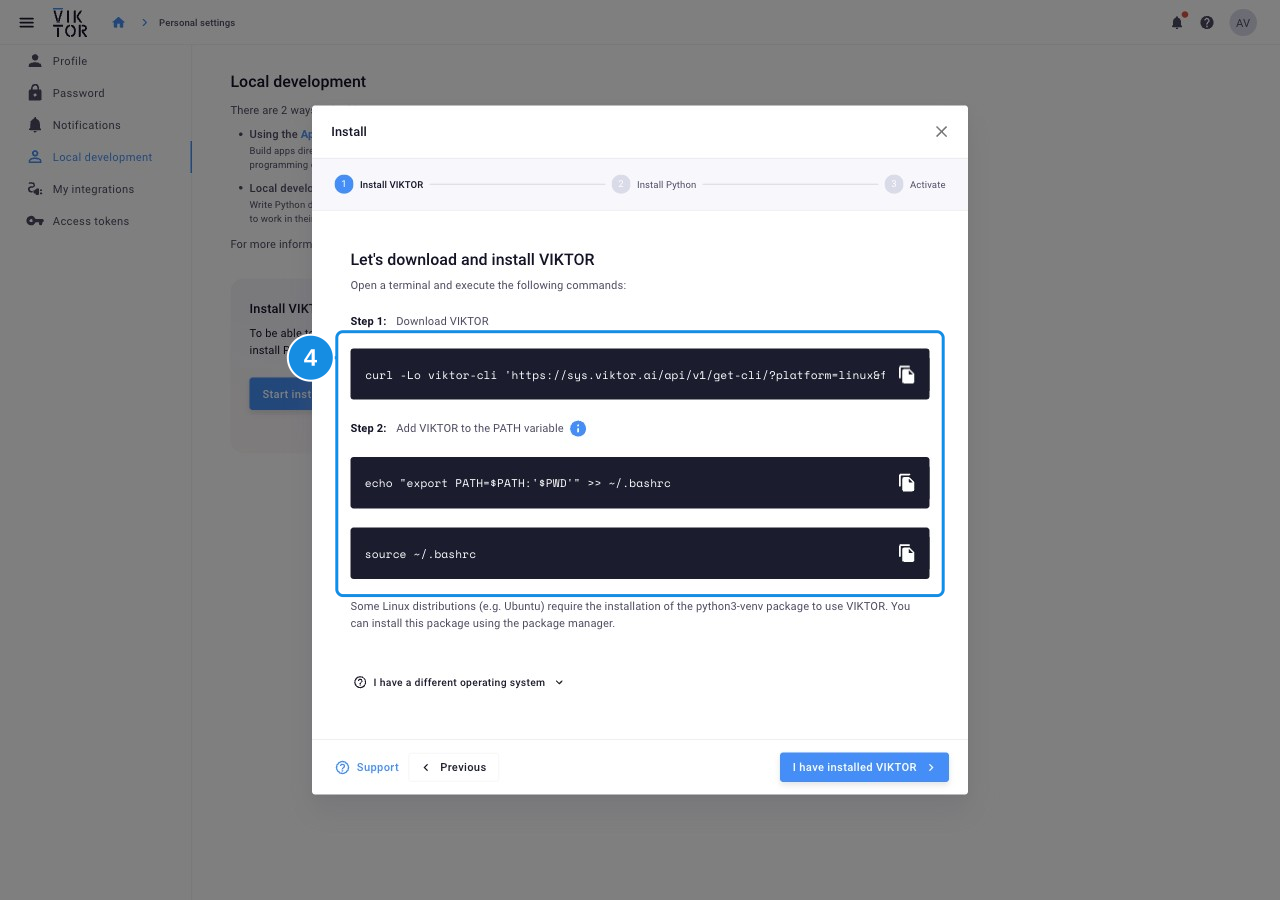
Open your Ubuntu shell.
-
Run the commands shown in the pop-up in your Ubuntu shell.
-
Follow the remaining installation steps in the pop-up in the same Ubuntu shell.
After activation, continue with Docker prerequisites.
Docker prerequisites
If you want to use VIKTOR within an enterprise IT-environment, please contact your IT-department to verify that your machine meets all requirements. Alternatively, you can consider using a cloud-based development environment.
Before you start the installation procedure, you can go through the following checklist to make sure your setup is ready for installation:
-
Machine should run on Windows 10 Home/Pro/Enterprise or Linux.
-
Python (64-bit); the programming language used by VIKTOR.
-
You will need personal VIKTOR credentials (try for free!).
-
Virtualization needs to be turned on on your machine.
Go toTask manager → Performanceand see if "Virtualization" is enabled.
If enabling of "Virtualization" is not allowed, it must be enabled in the BIOS of the machine first. In the BIOS, enable “Virtualization Technology (VTx)” (location and name may vary per machine) to do so. Please contact your IT department if you don't have the necessary permissions to make adjustments in your BIOS.
What will I install?
This setup uses the following tools:
- VIKTOR: the standard local installation, including VIKTOR's command-line interface (CLI), which you then switch to Docker.
- Docker: software used by the CLI to run your app code in an isolated 'container' in the background.
Installing Docker
If you are using Linux, Docker can be installed using the package manager.
There are two ways to install / use Docker on Windows:
- Hyper-V virtualization (default): system requirements
- Windows Subsystem for Linux 2 (WSL2): system requirements
The benefits and drawbacks of running on WSL2 are listed below:
+ installation and starting an app is fast
+ installation of an app does not fail when deep dependency trees are present
+ WSL2 is available for Windows Home, whereas Hyper-V is not
- WSL2 is not supported on all Windows versions
- conceptually more complex due to the separate Linux filesystem and command-line interface
- setting up requires more time
We recommend to choose the default Hyper-V method and only choose WSL2 if you use Windows Home or you are experiencing issues during app development.
- Hyper-V
- WSL2
-
Install Docker on your machine. When prompted, ensure "Enable Hyper-V Windows Features" is selected or "Install required Windows components for WSL 2" is deselected (options differ per installation version).
-
Open the Docker settings and disable the checkbox to use the WSL2 based engine in the "General" section, if this isn't the case yet:

-
Make sure that you share your user folder (
C:\Users\<username>). Allowing sharing of drives or folders (shared drives) is necessary when using Linux containers. If this was not done during the installation, you can set it inDocker → Settings → Resources → File Sharing. -
In the start menu, type “Turn Windows features on or off” (“Turn windows features on or off”) and make sure that Hyper-V is checked:

-
You can check all required Hyper-V features by running the
systeminfocommand incmd.exe. All requirements should have a value "yes". If this is not the case, please visit the website of Microsoft for more information.
An alternative method of running VIKTOR is by using Windows Subsystem for Linux 2 (WSL2). WSL2 is a dedicated part of Windows which can be used to run Linux processes, providing an alternative to Hyper-V virtualization.
In order to run Docker with WSL2, you will need to meet the stated requirements.
-
Install Docker on your machine. When prompted, ensure "Enable Hyper-V Windows Features" is deselected or "Install required Windows components for WSL 2" is selected (options differ per installation version).
-
Install WSL2.
- When asked for a Linux distribution, we recommend choosing the latest Ubuntu LTS version.
- It is NOT necessary to create an account for the distribution.
In case you do not have access to the Microsoft store, a manual download of a Linux distribution can be found here.
-
Start Ubuntu from the start menu. This action will open a command-line shell and ask you to create a user account.
-
Open the Docker settings and configure the following:
- General: enable the checkbox to use the WSL2 based engine
- Resource → WSL integration: enable the checkbox "Enable integration ..." and manually select the correct Ubuntu distro

-
Reboot your machine.
-
Start Ubuntu and type the following path in the file explorer address bar:
\\wsl$\Ubuntu-20.04(replace "Ubuntu-20.04" with your distribution name) to get started.
Switching to Docker
The standard installation sets up VIKTOR's command-line interface (CLI) with the default isolation mode. To run your apps in Docker instead, open your command-line shell and run:
viktor-cli configure
The configure command goes through your current settings one by one. Press Enter to keep each setting as it is, and
change only the isolation mode to docker.
System check
Run the following command to verify the installation:
viktor-cli check-system --docker
The check system command performs several checks. The conclusion of the checks are printed at the end of the message:
Starting VIKTOR system check...

V Operating system internet access
V Docker runs
V Docker using correct container
V Docker access to user directory
V Docker internet access
V Docker access to PyPI
V Docker access to VIKTOR domains

The system check has been completed with the following conclusions:

V Your system is ready to use VIKTOR with isolation mode 'docker'
If all checks succeeded, a "V" will be printed in front of Your system is ready to use VIKTOR with isolation mode 'docker'.
If any of the system checks fails, additional information can be printed to the command-line by using the --verbose
flag as follows:
viktor-cli check-system --docker --verbose