Workers
Connect a VIKTOR app to software that runs on a Windows machine. As an environment administrator, you can set up an organization worker and choose which app instances can use it. For a worker on your own machine, use VIKTOR Desktop.
Architecture
The worker starts an encrypted TLS 1.2 connection to the VIKTOR cloud over TCP port 443. You do not need to open an incoming port on the machine or company network.
The diagram shows the connections for production and development environments.
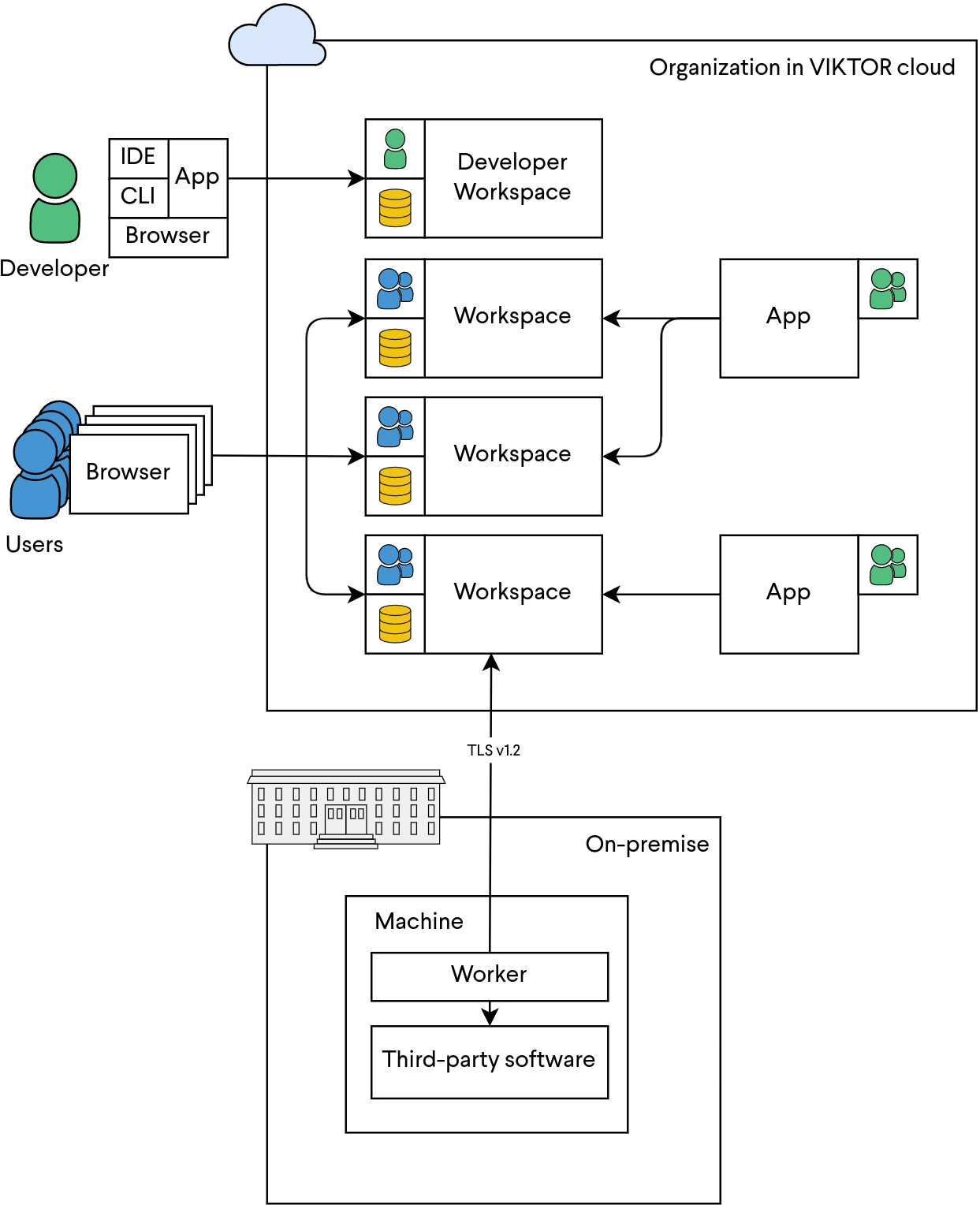 Simplified component diagram for VIKTOR platform
Requirements
This section outlines the requirements of the VIKTOR worker. The VIKTOR worker can be installed on any machine that is used to run the third-party software to be integrated with.
Minimum requirements
- Processor: 64-bit AMD or Intel
- Operating system: Windows
- The third-party software that is to be integrated is installed and licenses are available
- The VIKTOR worker requires outgoing TCP access to the internet over port 443. This is same port that is used for internet using HTTPS.
Recommended requirements
- Processor: 64-bit AMD or Intel
- Operating system: Windows Server
- The third-party software that is to be integrated is installed and licenses are available
- The VIKTOR worker requires outgoing TCP access to the internet access over port 443. This is same port that is used for internet using HTTPS.
Considerations for server requirements
The requirements posed by the VIKTOR worker are negligible. the system requirements of the third-party software that is integrated with are leading. The recommended requirements for these software packages should provide you with a good starting point.
Often performance bottlenecks can be traced back to the following causes:
- The machine is not running an operating system that is tailored to servers (for example Windows Server). This will often lead to a lower uptime because of unexpected updates or reboots.
- Engineering software often does not use parallelization to write results, the only thing that you can facilitate in this good read and write speed. We therefore recommend equipping the server with SSDs.
- Not all engineering software uses multiple cores and some programs have been built for 32-bit processors instead of 64-bit processors. In this case the maximum amount of RAM that can be used is 4GB. In conclusion more cores and more RAM do not always improve performance.
- Most engineering software only use graphics cards (GPU) for the the user interface and not to solve models, which is restricted to the central processing unit (CPU). Therefore, it might not be required to equip the server with high- performance GPUs.
- If hardware is no longer a bottleneck the amount of available licenses might be the bottleneck. This can happen when all licenses are in use by other users. Some software allows pinning the license to make sure it is always available.
- VIKTOR apps allow for parallelization of external analysis tasks with the worker. If enough licenses are available and the machine has enough capacity the worker can be configured to execute tasks in parallel.
Installation
Environment administrators can set up integrations for the entire organization, while developers and users (unless disabled*) can create and set up integrations for personal use only. Select the correct tab below and follow the steps.
The use of personal workers in app instances in projects is allowed by default. Developers can disable it for their maintained apps in the app edit dialog.
Using the ETABS, PLAXIS, Revit, SAP2000, Tekla, or Python worker integrations inside the App Builder requires a separate opt-in, because there the agent generates and runs that code without a review step. See the App Builder guide for details.
- Personal worker
- Organization worker
A personal worker connects the software that is installed on your own machine, for your own use. Personal workers are installed and managed with VIKTOR Desktop: one app to install, authenticate, run, and monitor all your personal workers.
- Download VIKTOR Desktop (a single signed .msi Microsoft Installer) from the My integrations tab in your personal settings, or directly from the VIKTOR Desktop page, and install it (first time only)
- Launch VIKTOR Desktop and log in with your VIKTOR account via the browser
- Click Add and select the software of choice
- Follow the instructions to complete the worker configuration
- Start the worker
See the VIKTOR Desktop page for details.
Personal workers that were installed with the previous per-worker installers keep running, but they are not migrated into VIKTOR Desktop. To fix this, re-install the worker via VIKTOR Desktop: add and configure it again, and uninstall the old installation using the Add or remove programs feature of Windows to avoid two workers with different configurations competing for the same tasks. See Migrate existing workers to VIKTOR Desktop. New personal workers can only be added through VIKTOR Desktop: the per-worker installer download and the connection-key flow are no longer available on the My integrations page for personal workers.
An organization worker connects software that runs on a machine managed by your organization, such as a virtual or remote machine, and is shared by the users of the app instance(s) you select.
You need to be an environment administrator in order to install an organization worker.
-
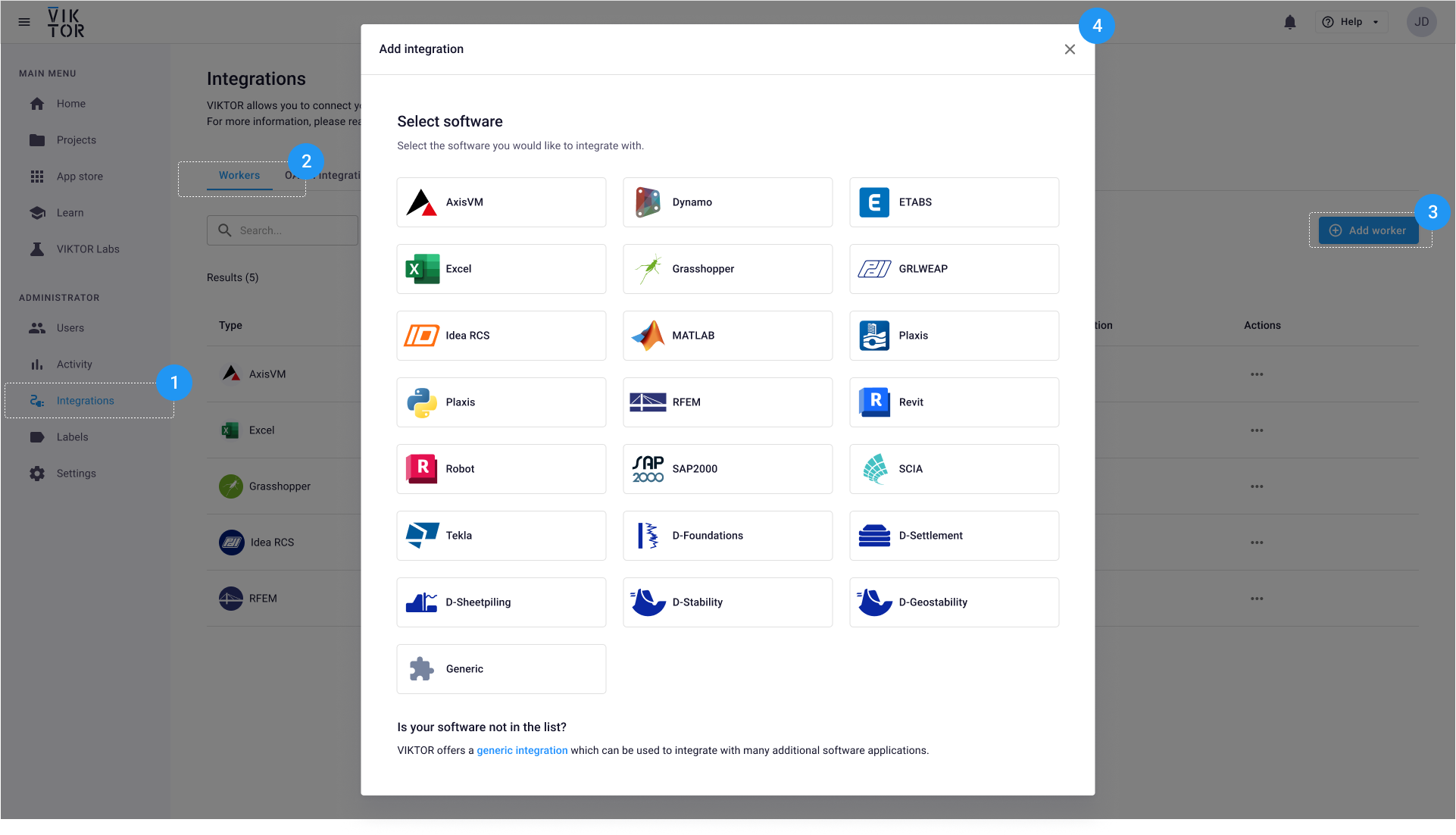
Go to Integrations in the Administrator panel.
-
Select the Workers tab.
-
Click Add worker. The dialog below opens.
-
Select the software to connect.
-
Select the app instances that can use the worker.
-
Download the worker
.msiinstaller. -
Run the installer on the machine with the external software.
-
Copy the generated connection key immediately.
-
Paste the connection key when the installer asks for it.
To verify the installation, start the worker and run a task from one of the selected app instances. Check the worker log if the task does not complete.
Copy the generated connection key immediately. VIKTOR cannot show it again after setup.
Operation
Personal workers are started, stopped, and managed inside VIKTOR Desktop. The options below apply to organization workers and personal workers installed with the previous per-worker installers.
After installation the worker can be operated in two ways, namely:
- Starting the worker manually via the desktop shortcut. During installation a shortcut to the VIKTOR worker is created on the desktop. You can start the worker by double-clicking the shortcut.
- (requires Administrator privileges) As scheduled task. During installation, you are asked to create a scheduled task for the worker. If this option has been selected the worker will automatically start after (re)boot of the server. We advise to run the worker as a scheduled task to make sure it is always connected to the platform.
Creating a scheduled task manually
Creating a scheduled task requires Administrator privileges on your machine.
When you have selected the option ‘Create scheduled task’ during installation of the worker, the worker will launch upon (re)boot of the server. You can check if a scheduled task has been created using the Windows Task Scheduler. You will need to start the Task Scheduler with administrator rights. The program can be started using the 'Start Menu' or through 'Start' > 'Windows Administrative Tools' > 'Windows Task Scheduler'. If the scheduled task for the VIKTOR worker is not present you can create a task as follows:
- Select 'Create task' in the side menu . This action will open a new window.
- Supply a name for the task in the tab 'General', for example
Viktor for <software package> <version> - Under 'Security options' :
- Select a user with the appropriate execution rights in the field 'When running the task, use the following user account'
- Check 'Run whether user is logged on or not'
- To use this option the user account requires 'Log on as a batch job' rights
- Add a new trigger on the tab 'Triggers' using the 'New…' button.
- Begin the task: At startup
- Add a new action on the tab 'Actions' using the 'New…' button.
- Action: Start a program.
- Program/script:
C:\Program Files\Viktor for <software package><version>\viktor-worker-...-<version>.exe - Start in (optional):
C:\Program Files\Viktor for <software package> <version>\
- Uncheck 'Stop the task if it runs longer than' in the tab 'Settings'
- Save and start the task.
Activity monitoring
Personal workers managed with VIKTOR Desktop have formatted logs inside the app. The log-file locations below apply to organization workers and personal workers installed with the previous per-worker installers.
A log is kept displaying all activity of the worker. This log shows at what time tasks have been started and completed.
The location of the log file depends on the environment variables of the server. The logs are written to the
C:\ProgramData folder or the first of the following variables %TMP%, %TEMP% en %USERPROFILE%. In the exceptional
case that none of these variables are set the worker stores the log files in the Windows folder.
Shared licenses
The VIKTOR worker only uses a license during execution of a task (e.g. running a simulation using the software package). If the program uses floating licenses this means that a licenses will only be taken from the license pool during the task. The license will be released upon completion of the task.
Upgrade or revoke a worker
An update of the VIKTOR worker might become available. For organization workers, you can install the new version as follows:
- Uninstall the old version of the VIKTOR worker using the 'Add or remove programs' feature of Windows.
- Install the new version of the worker by running the Windows Installer and completing the installation wizard.
For personal workers, updating is done via VIKTOR Desktop: when a worker update is available, VIKTOR Desktop prompts you to update, and once you confirm, the worker updates automatically. There is no per-worker installer to uninstall or rerun. Personal workers installed with the previous per-worker installers cannot be re-installed this way anymore, as the per-worker installers are no longer available: migrate the worker to VIKTOR Desktop to keep receiving updates.
If the worker is no longer used or needed, please contact your environment administrator to revoke the worker through the administration panel or remove personal workers through the My integrations tab. Subsequently, the worker can be uninstalled from the machine.
For personal workers managed with VIKTOR Desktop, removal and revocation are done per user: stop or remove the worker inside the app, and revoke access for the machine by clicking your profile in the top-right corner of VIKTOR Desktop and selecting "Log out". There are no per-worker connection keys to revoke.
VIKTOR Desktop itself is updated the same way as its workers: when a new version of the app is available, you are prompted to update, and once you confirm, it updates automatically. There is no need to reinstall the .msi.
Security
In this section we highlight the measures taken to incorporate security in the design of the VIKTOR worker.
First of all, the worker only requires an outgoing connection to connect to the platform. Therefore, there is no need to open ports for incoming traffic or port-forwarding of incoming traffic to the machine from the outer network perimeter.
For personal workers, VIKTOR Desktop authenticates with a browser-based login (OAuth 2.1 with PKCE) that is bound to your VIKTOR account, instead of per-worker connection keys. See the requirements on the VIKTOR Desktop page for the details relevant to IT administrators.
Furthermore, a VIKTOR worker is built for a specific software package, so a worker is only able to perform one specific task. The exception to this is the generic worker, which we have developed to allow for integrations with software we do not have a specific integration with (yet). The following paragraph describes the way the generic worker can be used in more detail.
The generic worker can be used to execute executables on the machine. In order to prevent abuse, the executables that
can be called using the worker are defined in the worker configuration file and thus are controlled by the
administrator of the server. The configuration file can be found in
C:\Program Files\Viktor\Viktor for <software package> <version>\config.yaml, unless you have chosen
a different installation location. The worker is not allowed to call any other executables than the ones defined in
the configuration file. Furthermore, any additional arguments that are used to call the executable with are fixed.
These arguments are defined in the configuration file as well. In conclusion the administrator of the server is in
full control of the executables that can be called using the generic worker and can be limited to only those that
are required to run the analyses required by the application.
Troubleshooting
If the worker is not able to connect to the platform or successfully complete tasks the following checks can be performed to fix the problem yourself:
- Inspect the log file. You can find this file in
C:\ProgramData\Viktor\Viktor for <software package><version>\logs\worker.log. All errors that the worker encounters are logged in this file. In the exceptional case that%ProgramData%is not defined as an environment variable the log files are written to a different directory. In that case you can find the log in one of the following:[ %TMP% | %TEMP% | %USERPROFILE% | C:\Windows ]\Viktor\Viktor for <software package> <version>\logs\worker.log. - Inspect the configuration file of the worker. You can find this file in
C:\Program Files\Viktor\Viktor for <software package> <version>\config.yaml, unless you have chosen a different installation directory during installation of the worker. - Inspect the availability of the licenses of the third-party software that is to be integrated with. In most cases this can simply be done by manually launching the program via the start menu.
Known issues
SCIA Engineer
The solver of SCIA Engineer cannot be executed from a Windows service or scheduled task, due to ‘session 0 isolation’. Therefore, it is required that the VIKTOR worker integration with SCIA Engineer run in a user environment. This implies that a user account should always be logged on to make sure that tasks can be completed successfully. The vendor of the software is aware of this problem and looking into ways to fix this.
In order to do this it is convenient to set up an account that logs on automatically upon (re)boot of the server. This account should have access to a SCIA Engineer license. To set up a VIKTOR worker to integrate with SCIA Engineer please proceed as follows:
- Create a new user account with appropriate access rights.
- Enable automatic logon for the account created in step 1, as described in this article. We want to stress that this logon procedure is “only advised when the computer has been physically protected and steps have been taken to prevent unauthorized users remotely accessing the register”.
- The VIKTOR worker is supplied as a Windows Installer (.msi file). You can configure the worker by completing the installation wizard.
- After installation a shortcut for the VIKTOR worker can be found on the Desktop and in the Start menu as
Viktor for <software package> <version>. By starting the application you enable the connection between the VIKTOR platform and the worker. - It is also possible to create a scheduled task that runs the VIKTOR worker. The task should be run by the account created in step 1. Furthermore, make sure to check the box ‘Run only when the user is logged on’.
COM permissions
Several workers communicate using Windows COM. The following integrations use COM:
- Excel
- AxisVM
- RFEM
The user account running the workers needs to have the correct permissions. Although the permissions might be already correct for operating the worker from the desktop, running the worker as a scheduled task might require additional configuration. When you encounter problems it is helpful to inspect the 'Windows Logs' to see if any errors were raised during execution of the worker. The logs can be accessed using the following steps:
- Open 'Component Services' (Start > Component Services).
- Select 'Event Viewer (Local)'.
- Select 'Windows Logs'.
- Select 'System', this will open a list of logs of your system.
- Inspect these logs for any errors related to the usage of Windows COM, this can be done by looking at the source of the log, which will be labeled 'DistributedCOM'.
An error related to a lack of permissions might look like the example below:
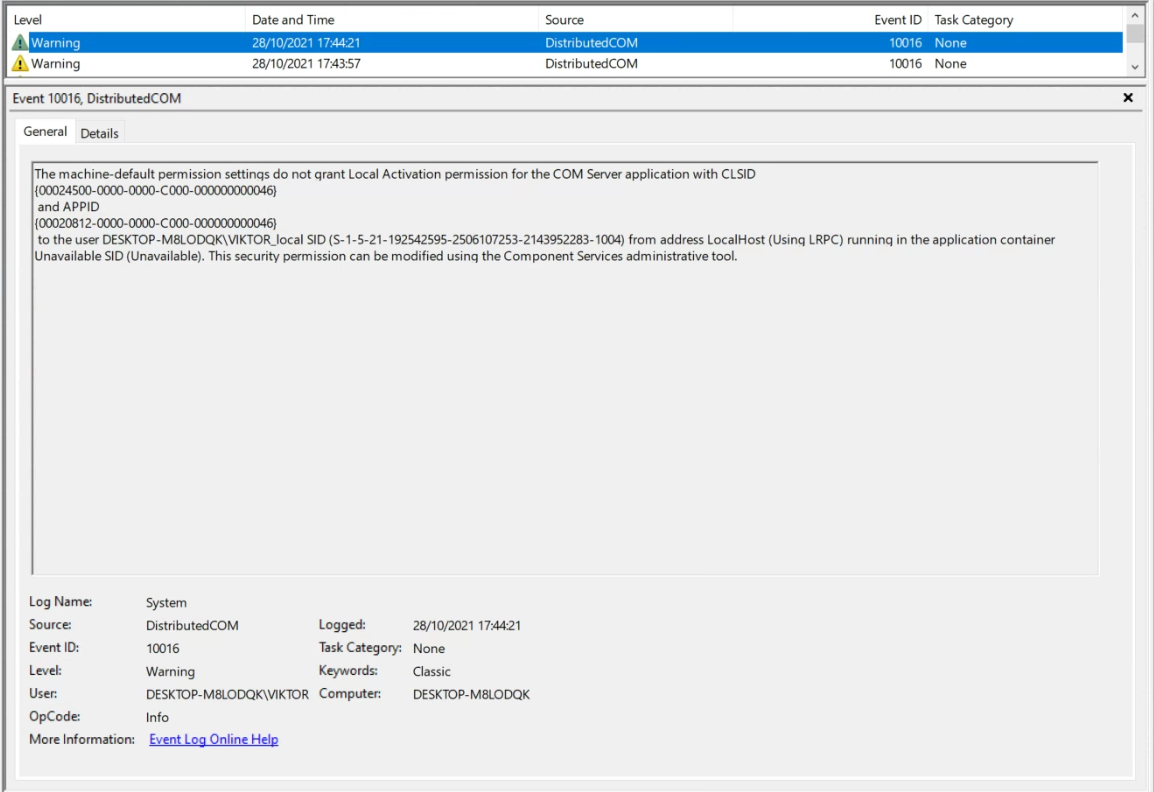 Example of Windows error log
The information from this log can be used to correctly configure permissions. First of all, the permissions for the CLSID and APPID should be set in the registry. Please follow the steps below:
- Open the 'Registry Editor' as administrator.
- Go to
Computer\HKEY_CLASSES_ROOT\CLSID\{INSERT_CLSID_FROM_LOG}. Use the right mouse button to select 'Permissions'. - Add or select the user account you use to run the worker and select 'Full Control'. Click 'Apply' to store the new permissions.
- Go to
Computer\HKEY_LOCAL_MACHINE\SOFTWARE\Classes\AppID\{INSERT_APPID_FROM_LOG}. Use the right mouse button to select 'Permissions'. - Add or select the user account you use to run the worker and select 'Full Control'. Click 'Apply' to store the new permissions.
Now the right permissions should be set in the DCOM config. Please follow the steps below to set the correct permissions:
- Open 'Component Services' as administrator and select DCOM Config (Console Root > Computer > My Computer > DCOM Config).
- To be able to see the corresponding AppIDs click 'View' and subsequently 'Detail', subsequently find the corresponding AppID from the event log.
- Click the entry with the right-mouse button and open 'Properties', select the 'Security' tab.
- Now select the option 'Customize' in 'Launch and Activation Permissions' and press 'Edit'.
- Add or select the user account you use to run the worker and select 'Local Activation' and close the window by clicking 'Ok'. Finally close the 'Properties' window by pressing 'Apply'.
Now the permissions should be configured correctly to run the worker from a local user account.
Microsoft Excel UI elements
The scheduled task that is created by the installer to run analyses with Microsoft Excel is able to run without problems in most cases. However, when the scheduled task is run from the SYSTEM account with the setting 'Run whether user is logged on or not' it is not possible for Excel to load any UI elements. This will cause any macro that uses 'User forms' to hang. These forms are sometimes used for progress bars during macro calculations. We advise that any user forms are stripped from Excel workbooks that are used for analyses using the VIKTOR worker.
Microsoft has published an article with some considerations for server-side automation of Office programs, please read this article.
Microsoft Excel cells not updating
There can be differences in the behaviour of a macro when running Excel headless as compared to using the GUI. Notably, if your macro changes the value of a given cell, the values of the cells that are dependent on that value will not be updated automatically if the GUI is not open. This can be fixed by using the Worksheet.Calculate function in your marco to make sure the cells are updated as needed. More information on how to use Worksheet.Calculate function can be found in this article
Next step
See the supported software for instructions to use the worker in an app. Return to Integrations to compare integration types.