OAuth 2.0 integrations
Set up an online service once for your organization. A maintainer can then use the integration in an app, and each end user signs in with their own account. OAuth 2.0 lets the service grant limited access without sharing the end user's password with the app.
Requirements
- You are an environment administrator.
- The service supports OAuth 2.0 and HTTPS.
- You have the credentials required by the service's setup guide.
- You know which app instances need access and which permissions they need.
Choose your service from the supported software and follow its requirements. Use PKCE (Proof Key for Code Exchange) where supported. If the service supports refresh tokens, request the provider's required scope for access without repeated sign-in; the scope name depends on the provider.
Create an integration
-
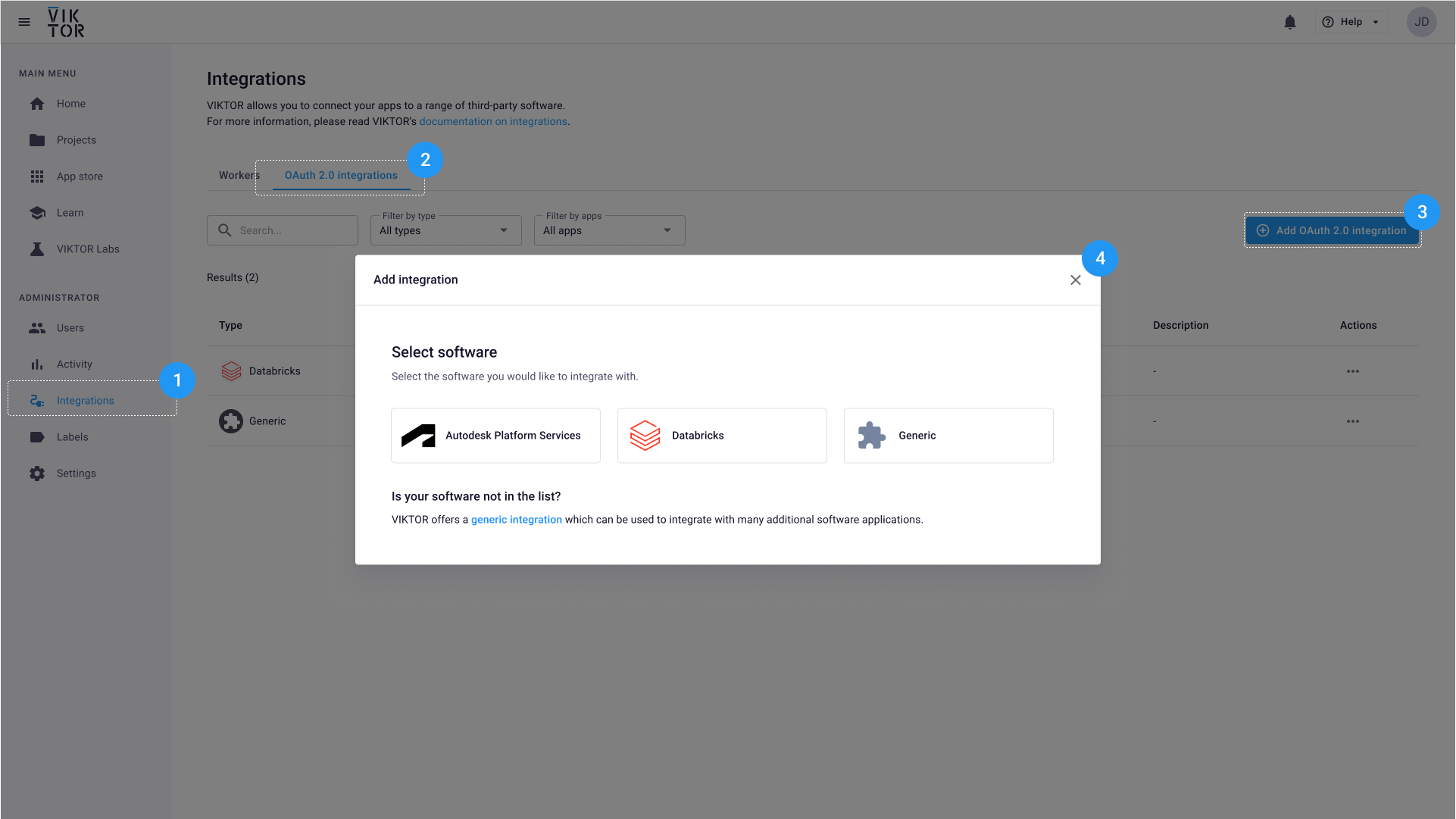
Go to Integrations in the Administrator panel.
-
Select the OAuth 2.0 integrations tab.
-
Click Add OAuth 2.0 integration. The dialog below opens.
-
Select the service to connect.
-
Enter the basic integration information.
-
Select the app instances that can use the integration, or allow all apps in the environment when needed.
-
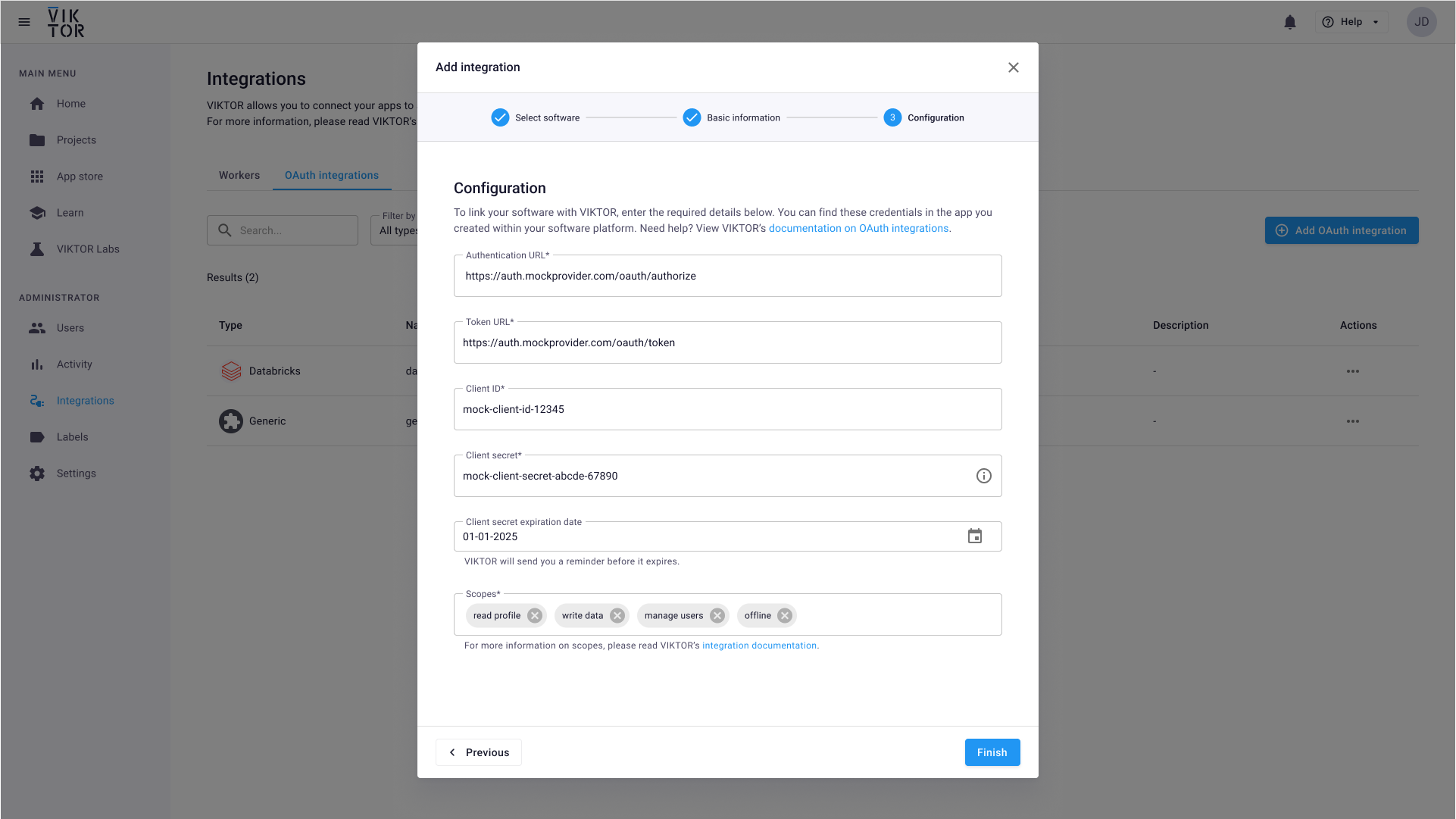
Enter the credentials from the service. The image below shows the configuration fields.
-
Complete the setup in the dialog.
After you create the integration, VIKTOR cannot show the client secret again. Keep the source credential in your organization's approved credential store.
Verify the connection
Ask a maintainer to use the integration in one of the selected app instances. Open that app and start the action that connects to the service. Sign in, review the requested permissions, and grant access. Check that the app can retrieve the expected data.
If the app cannot use the integration, check the selected app instances, the service credentials, and the permissions in the service's setup guide.
How end user access works
- The end user starts an action in the app that needs the service.
- VIKTOR opens the service's sign-in and permission page.
- The end user signs in and approves or denies access.
- If access is approved, the service sends a temporary authorization code to VIKTOR.
- VIKTOR exchanges the code for an access token with the approved permissions.
The protocol diagram shows this exchange between the service and VIKTOR. Tokens have limited permissions and a limited lifetime.
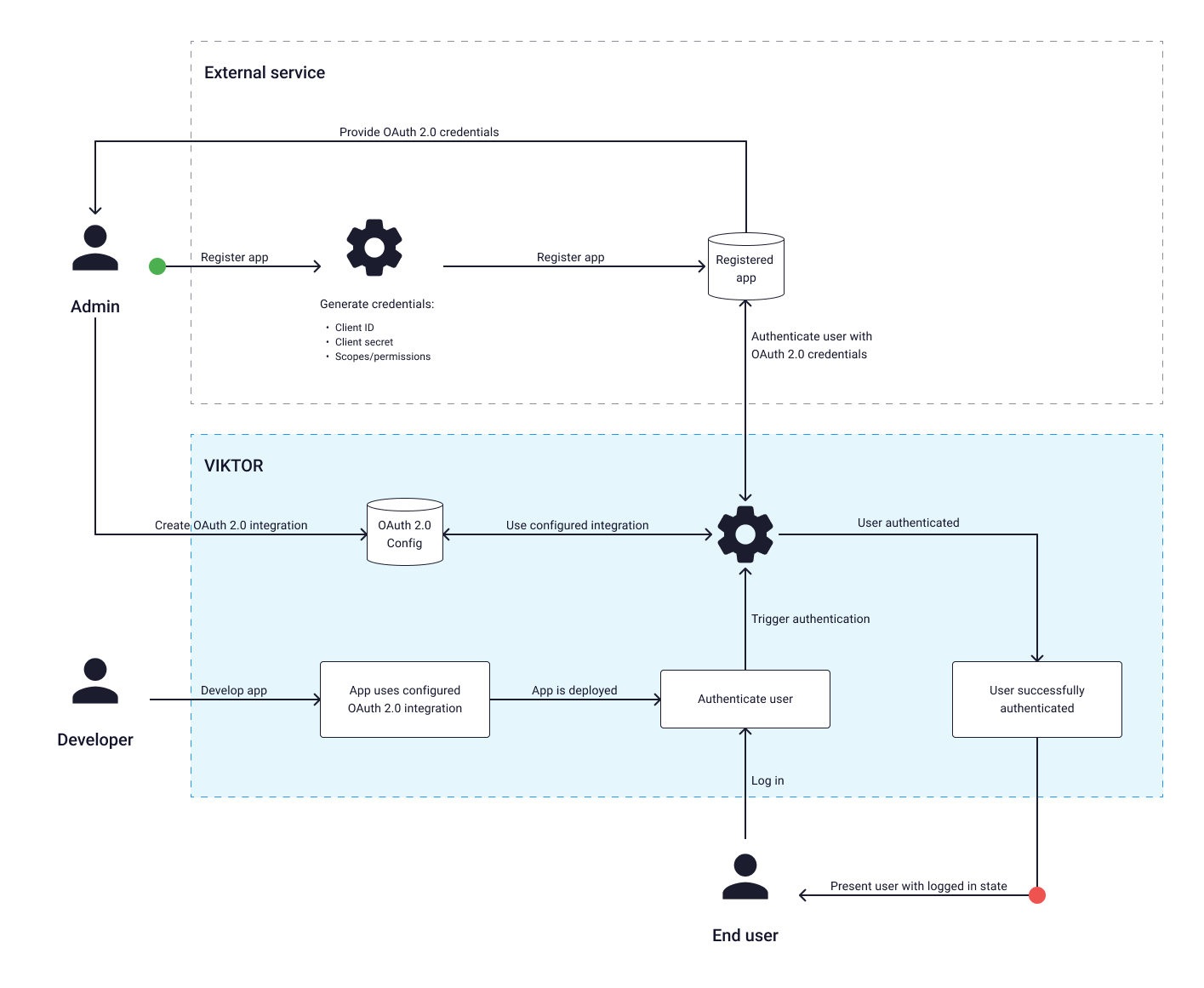
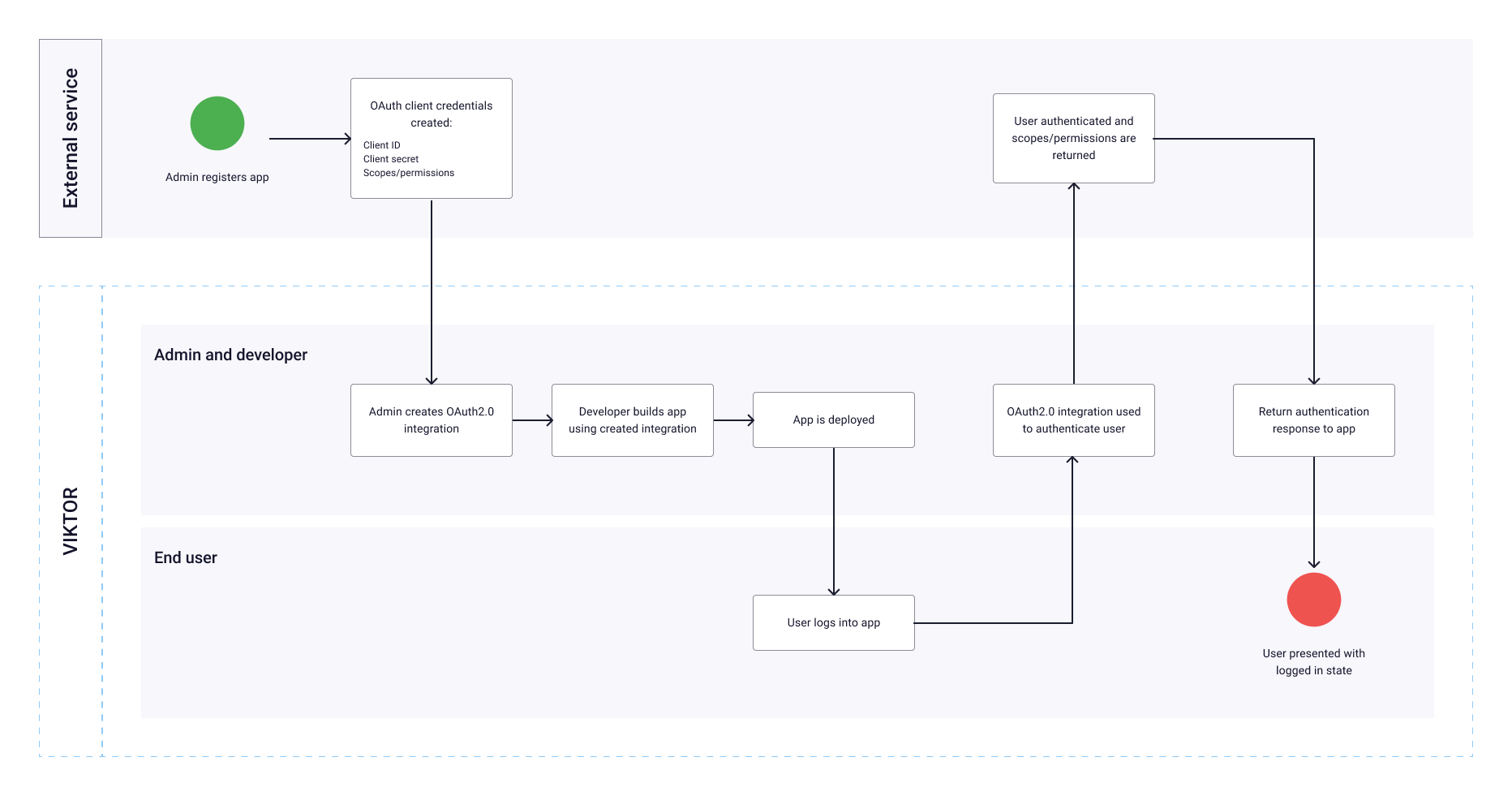
The role diagram shows where the environment administrator configures the integration, the maintainer adds it to an app, and the end user grants access.
Next step
Follow the service's integration guide to use the connection in an app. Return to Integrations to compare integration types.